Bounties and Payouts
How to approve bounties, manage the disbursement pipeline, read and re-queue a failed payout, handle tax documents, and use the immutable financial ledger for SOC 2 evidence.
Why It Matters
Bounties and payouts are included with every active Kit subscription. The workflow includes the disbursement pipeline, immutable financial ledger, and tax document management described on this page.
Kit lets you require tax document verification before a payout. Configure the requirements for your program, then have your team review uploaded forms before payment. Enabling this feature does not determine your company’s tax obligations. Form W-9 provides the payer with a taxpayer identification number and certifications for information reporting (IRS guidance).
The immutable financial ledger is the primary SOC 2 evidence artifact for your vulnerability disclosure program’s financial controls. Every bounty approval, every disbursement, and every tax document action is recorded with actor, timestamp, and amount. Auditors can verify the complete chain of custody from report resolution to payment confirmation in a single export.
Bounty Matrix
The bounty matrix maps CVSS severity tiers to dollar ranges. Configure it in VDP > Program Settings > Bounty Matrix. When a team member scores a report with a CVSS assessment, the suggested bounty range is automatically pulled from the matrix and pre-filled on the approval form.
Bounty ranges are displayed on your public disclosure policy page so researchers know what to expect before they submit. This transparency reduces disputes and sets clear expectations.
For recognition-only programs, leave all tiers at $0. Researchers will see “recognition only” on the policy page instead of dollar amounts.
See Configuring Your Program for full matrix configuration details.
Two Ways to Reach an Amount
There are two paths to approval. Both record the approved bounty in the ledger and notify the researcher.
| Path | How it works | Use it when |
|---|---|---|
| Direct approval | An admin types an amount and approves it. One step. Described below. | The number is obvious: a low-severity report at the bottom of its matrix band, a duplicate-adjacent finding, anything nobody would argue about. |
| Propose, then approve | Any member puts an amount on the table with a rationale. Colleagues agree or object with counter-amounts. An admin then approves. | The number is contested, unusually large, or sets a precedent you will be held to on the next report. |
Proposals are advisory and researcher-invisible: nothing about a proposal notifies the researcher, writes to the ledger, or moves money. They also do not gate anything; an admin can approve directly at any time, whether or not a proposal is open. See Bounty Proposals and Team Voting.
Approving a Bounty
Admins can approve a bounty at any point before the report reaches Paid status. As a best practice, wait until the report is validated, ideally resolved, so the amount reflects a confirmed, assessed vulnerability.
To approve a bounty:
- Open the report detail page
- Click Approve Bounty
- Fill in the approval form
| Field | Required | Description |
|---|---|---|
| Amount | Yes | Bounty amount, pre-filled from the bounty matrix based on the report’s CVSS severity tier. |
| Currency | Yes | Defaults to USD. Must match your program’s configured currency. |
| Notes | No | Internal notes visible only to your team. Encrypted at rest. |
Approval requires explicit submission; no amount is committed until you save the form. On approval:
- A
bounty_approvedentry is appended to the immutable ledger - The researcher is notified via the Bounty Approved email template
- Any open bounty proposal on the report is closed as superseded, with its votes kept as a record
For teams that use proposals, approving directly while a proposal is open approves the amount you typed, not the amount the team was discussing, and ends the deliberation. Approve from the report’s Bounty tab instead when you want the proposed amount.
Revoking a Bounty
Dismissing a report that has an approved bounty automatically revokes it. The dismissal modal warns you with the amount, approver, and approval date, and the submit button changes to Dismiss & revoke $X bounty. On revocation:
- A
bounty_revokedentry is appended to the immutable ledger as a debit; the ledger’s approved and pending totals subtract it. The entry’s metadata records the dismissal reason, the original approver and approval date, and the disbursement status at the time. - The researcher’s dismissal email states that the previously approved bounty has been withdrawn and will not be paid; the standard appeal flow is the recourse. Their portal shows a “withdrawn” note instead of the bounty card.
- The karma granted for the bounty is reversed with a “Bounty Revoked” karma event.
Two safeguards apply:
- A bounty whose disbursement is Completed can never be revoked.
- A payout in flight (disbursement Pending or Processing) blocks dismissal. Mark the disbursement as failed first, or let it complete. Only a Processing disbursement can be marked failed; Pending is a sub-second transient (see Disbursement Statuses), not a state you can act on.
Warning
Choose “Something else” when the failure precedes a dismissal. Marking a payout failed with any other reason emails the researcher and asks them for payout details that work, on a bounty you are about to withdraw. Kit does not stop that combination, because it cannot know what you intend to do next. Something else contacts nobody, so it is the reason to pick when you are failing a payout only to unblock the dismissal. See When a Payout Fails.
Undoing a dismissal does not reinstate the bounty. Once the report is validated again, approve a new bounty manually; the staff UI shows a reminder.
Disbursement Pipeline
Navigate to VDP > Disbursements to manage payouts. The queue opens on a set of tabs so you always see the slice of work you care about: Ready, Blocked, With Finance, Paid, Failed, and All. The Ready tab is where you land by default.
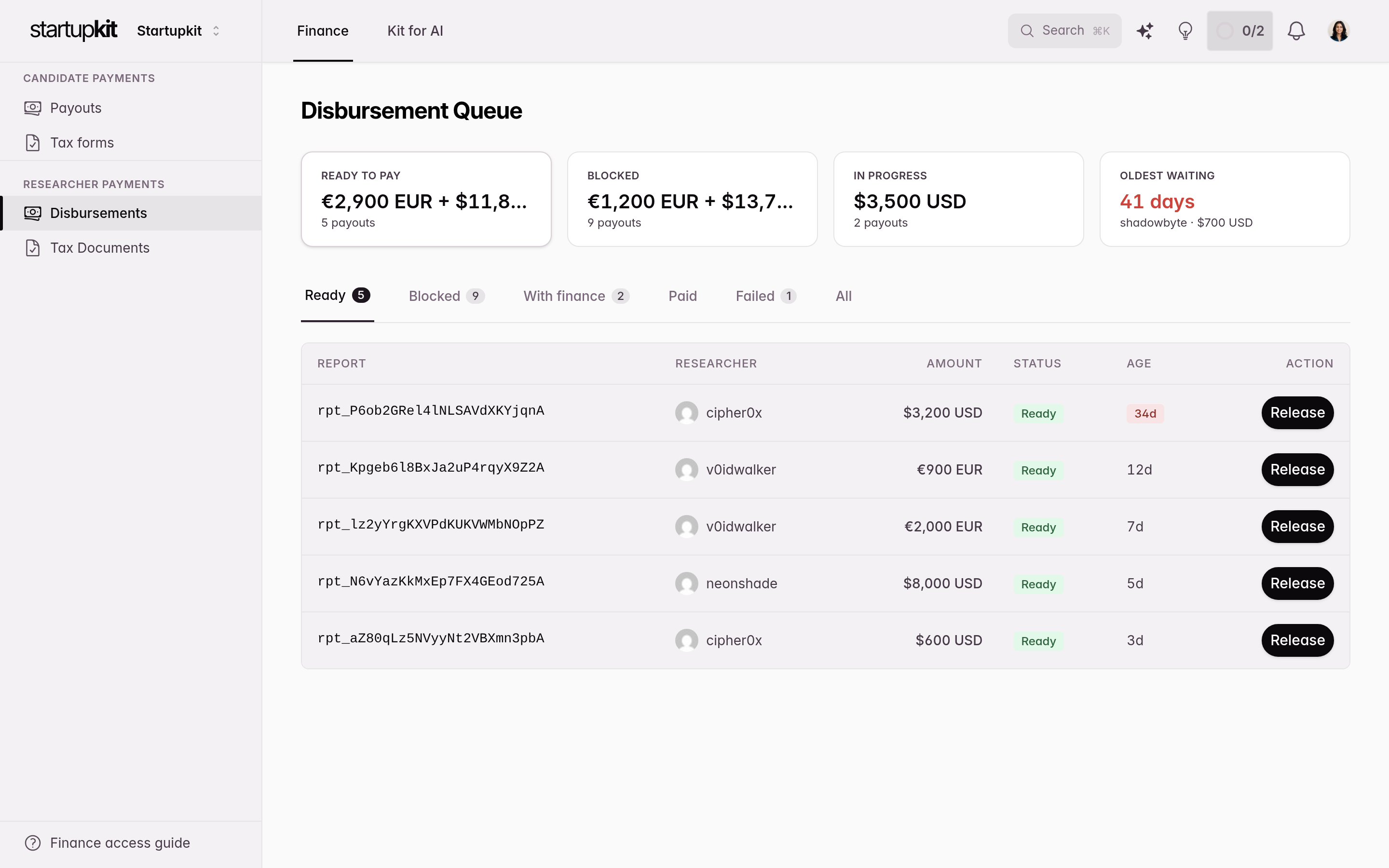
Four summary tiles run across the top:
- Ready: reports with an approved bounty and no disbursement yet, where the readiness checklist is satisfied and the money can move now.
- Blocked: reports with an approved bounty and no disbursement yet, where the readiness checklist is not yet satisfied.
- In Progress: payouts already handed to finance and awaiting confirmation.
- Oldest Waiting: the single oldest unpaid approved bounty still in flight. It shows how many days it has waited, the researcher, and the amount, and deep-links straight to the tab that row lives on so you can act on it.
Money in different currencies is never summed. Each tile shows per-currency amounts, so a program paying in USD and EUR sees both totals side by side rather than a meaningless combined figure.
The Ready and Blocked tabs are the two halves of the same set (reports with an approved bounty but no disbursement yet), split by whether the readiness checklist is satisfied.
Readiness Checklist
Before a disbursement can proceed, the researcher must satisfy a readiness checklist. Payout details are always required; your program settings determine whether an agreement and a verified tax document are also required:
- Payout info submitted: The researcher has entered their payment details (bank transfer or PayPal) via The Researcher Portal
- Agreement accepted: The researcher has accepted your program’s participation agreement (if your program requires one)
- Tax document verified: The researcher’s W-8BEN or W-9 has been uploaded and verified by your team (if your program requires tax docs)
Items that are not enabled in your program settings are automatically marked as satisfied.
The checklist also gates on the report’s status, controlled by Require Verified Fix Before Payout in VDP > Program Settings > Payouts:
- On (default): The bounty can only be disbursed after your team marks the report’s fix as verified. You never pay for an unresolved bug, but researchers may wait for the fix to ship.
- Off (pay on validation): The payout unlocks as soon as the report reaches Validated, the industry norm on platforms like HackerOne and Bugcrowd. Researchers are paid faster, and payment is decoupled from closing the report: the report stays open after the money moves and closes as Paid automatically once it is resolved (or fix-verified). Paid reports can never be dismissed, and fix verification becomes an optional QA step; record it before the report resolves, or it won’t be tracked.
The Chase Board
The Blocked tab is a chase board: instead of a flat list of stuck payouts, it groups blocked payouts by researcher, so you nudge a person once rather than chasing the same person across several rows. Anonymous submissions, which have no researcher on file, form their own no-researcher group.
Each group shows:
- The researcher (or “anonymous” for the no-researcher group)
- How many of their payouts are blocked
- The total owed, per currency
- Which blockers apply, as blocker chips: Payout info, Tax document, and Agreement
- How many days the oldest payout in the group has waited
Groups are ordered nudge-due-first (the researchers you can chase right now come to the top), then longest-waiting-first within that.
Each group also states how much a nudge would release, as an “unblocks N payouts / $X” figure. It counts only reports whose every remaining required item is something the researcher can fix themselves (payout info, tax document, agreement). A report that is still awaiting fix verification, a step your team owns, is not counted, because emailing the researcher won’t release it.
Nudging a Researcher
From the Blocked tab, click Nudge on a researcher group to email that researcher a reminder. Nudging requires payout permission (disburse).
One email per researcher covers all of their current gaps at once (payout info, tax document, and each per-report agreement) rather than sending a separate email per blocker. The researcher gets a single, complete to-do list.
Every blocker in the email is a magic-link deep-link. Researchers who are not already signed in first confirm sign-in, then reach the page for that gap: the payout-info form, the tax-document upload, or the specific report’s agreement. Because the token is stateless, the researcher’s existing magic login link stays valid; a nudge never invalidates it. Requesting a new login link invalidates both that earlier link and the nudge links.
Nudges are throttled by a per-(account, researcher) cooldown of 3 days. If you already nudged that researcher within the window, the button reports that it is cooling down instead of re-sending. The cooldown is tenant-scoped: one customer’s nudge never affects another’s, even for a researcher who reports to several programs.
Nudge only appears when the researcher can unblock something. Report-level gaps (bounty approval, validation, and fix verification) are your team’s job and are never nudged; a nudge is offered strictly for researcher-fixable items.
Processing a Payout
Kit does not execute wire transfers or payment API calls. Your team handles the money movement outside Kit (bank transfer or PayPal). Kit tracks the lifecycle:
- When all readiness items are satisfied, click Initiate to move the disbursement to Processing
- Execute the transfer through your payment provider
- Return to Kit and click Mark as Paid and enter the transaction reference (e.g., PayPal transaction ID, wire confirmation number)
- The disbursement moves to Completed and the report transitions to Paid (on pay-on-validation programs, a report paid before it is resolved stays open and closes as Paid automatically once it gets there)
Finance Team Confirmation
The person who schedules the payment usually sits in finance, not security. Kit supports two bounded ways to hand them the work:
- Give a teammate the Finance role for a signed-in queue covering researcher disbursements and W-8/W-9 review. They can initiate, complete, retry, or record a failed payout, but cannot read vulnerability reports, approve bounty amounts, change payout settings, or use the broader CSIRT ledger and exports.
- Configure an inbox like
[email protected]for people who should act from a secure link without a Kit account.
Security still decides whether and how much to award. Finance executes and records the approved payment.
Enable it by setting Finance Email in VDP > Program Settings > Payouts. Leave the field blank to keep recording payments manually in Kit.
With a finance email configured, clicking Initiate also sends a payment request to that address containing:
- The payee (researcher), amount, and payment method. PayPal addresses are shown in full; bank account numbers are masked to the last four digits, with full details available only behind the confirmation link
- The disbursement reference to include in the payment memo, so reconciliation works both ways
- Approval provenance: who approved the bounty and when, and who initiated the payout
- A secure link, valid for 90 days, carrying two verbs: confirm the payment, or report that it failed
The finance person opens the link, sees the full payment details, makes the payment through your payment provider, then enters the transaction reference and their name to confirm. Confirming completes the disbursement exactly like an internal Mark as Paid: the ledger entry is written, the report transitions to Paid when its lifecycle allows as described above, the researcher is notified automatically, and your team gets the usual payout completion notification, naming the finance confirmer as the person who marked it paid. The confirmation records who confirmed (name and email), when, and from where (IP address), visible on the disbursement row as Confirmed by finance.
If the payment does not go through, the same page offers a Report a failed payment link under the confirm form. That records the failure with identical provenance (who reported it, when, and from where), and the disbursement row shows it as Payment bounced · Reported by …. See When a Payout Fails.
Further details:
- Replies reach a human. The email’s reply-to is the team member who initiated the payout, so finance questions land with someone who has context.
- Resend anytime. The disbursement row shows when and where the request was sent, with a resend button that issues a fresh link.
- The internal flow stays available. If finance replies “done, ref #123” by email instead of clicking, your team can still mark the disbursement paid manually; the link then shows an “already recorded” receipt.
- The link dies with the disbursement. Once completed or failed, the link can no longer confirm or fail anything; it only shows the current state. A failure reported through the link shows finance its own receipt: the reporter, the date, the reason, and a line telling them not to retry the payment because a fresh request will follow.
- Confirmation through the finance link uses the normal notification tier. Kit records the details supplied by the confirmer. It does not apply the second-look tier described below, which is intended for payouts handled entirely by one team user.
- Cancellations are announced when your team calls them off. If a payment request was sent and your team later marks the disbursement failed from Kit, finance gets a “payment cancelled, do not pay” notice from the same branded sender, so nobody wires money for a payout you’ve withdrawn. When finance reports the failure themselves through the link, no notice is sent; they are the ones who told us, and their receipt already says what happens next.
When a Payout Fails
Kit never moves money, so it never learns that a transfer bounced. Somebody has to say so, and marking a payout failed is that statement. It is bookkeeping: no funds move, nothing is refunded, and the approved bounty is untouched; the full amount stays reserved for the researcher.
Two people can record it. Your team uses Mark failed on the disbursement row, which needs payout permission (disburse). Finance uses the Report a failed payment link on the confirmation page, so whoever is holding the bank rejection can record it without routing it back through your team first.
Both routes ask the same question with the same five answers:
| Reason | What it does for the researcher |
|---|---|
| The recipient can’t accept payments right now | Emails the researcher and asks for payout details that work |
| The account details didn’t match a real account | Emails the researcher and asks for payout details that work |
| The payment went out but was returned to us | Emails the researcher and asks for payout details that work |
| Something else | Contacts nobody; staff triage only. It requires a note, because that note is all your team will have to go on |
| This payment method can’t be used for this recipient | Emails the researcher and asks for payout details that work |
Every reason except Something else emails the researcher. That email names the reason in the researcher’s own terms, restates that the full amount is still reserved for them, and carries a magic link that drops them straight onto their payout page. It never quotes the note: whatever finance or your team typed (a bank portal error string, an internal reference) stays inside your team.
Anonymous submissions have no researcher on file, so no email is possible whichever reason you pick.
The row moves to the queue’s Failed tab. The report timeline records the failure with the reason code only; the note is never put on the timeline. The ledger gets a disbursement_failed entry, likewise carrying the code alone.
Reading a Failed Row
A failed row exists to answer one question: do I retry, or am I still waiting on the researcher? Retrying against the account that just bounced bounces again, so the row states only what Kit can prove, never what it can guess.
When a payout goes out, Kit records which payment method it was sent on and which account it was sent to. After a bounce it compares that against what the researcher has on file now, and the row says exactly one of:
| The row says | What it means | What to do |
|---|---|---|
| Details changed 2 days ago · PayPal m•••@gmail.com → PayPal e•••@live.com | The details on file differ from the ones that bounced | Retry |
| Re-saved 2 days ago; same details that bounced | The researcher opened their payout page and saved without changing anything | Don’t retry. Contact them; they likely did not understand what to fix |
| Same details as bounced; retry will likely fail again | Nothing has been touched since the payment bounced | Wait, or chase the researcher |
| Researcher saved details 3 days ago; can’t confirm they differ | The payout bounced before Kit began recording this, so there is nothing to compare against. They did save something | Retrying is reasonable, but it is a guess, not a confirmation |
Account handles are always masked on the row. A payout with no recorded destination and no sign the researcher has touched their details shows none of these lines; Kit stays silent rather than assert something it cannot back.
The Retry button follows the same judgment. It is the row’s primary action only in the two states where fresh details are on file, and drops to a quieter secondary style in the two where a retry would re-wire the same dead account.
Every attempt is kept. Retrying no longer erases the payout that bounced. Each earlier attempt stays on the row as its own line (Attempt 1 bounced 12 days ago · Recipient can’t accept payments), so you can see that this is the third time this researcher’s account has refused the money rather than the first. Attempt history is shown on wide screens; narrow screens drop it to keep rows readable.
“Asked researcher” is a record, not an assumption. The line Asked researcher · 3 days ago appears only once that email has been delivered, and carries the time it went out. A freshly bounced row that does not show it yet has an email still in flight.
The “Other” Dead End
Something else reaches nobody. It is the staff-triage escape: the reason to pick when you are failing a payout only to unblock a dismissal, or when the cause is internal and there is nothing wrong with the researcher’s details.
That silence used to be invisible on the queue, and it stranded real payouts for weeks: the row looked like any other failure, so nobody realised the researcher had never been told. Rows failed as Other now say so plainly, Not asked. “Other” never reaches the researcher, and carry an Ask for new details button, which becomes the row’s primary action.
Clicking it sends the researcher the same payout-details request the other reasons send automatically, and stamps the row with the time it went out. The email never quotes your note and never names the reason: the researcher is told only that the payment could not be completed, and asked for details that work. The button then gives way to the Asked researcher line.
When the Rail Itself Refuses
Two reasons, The recipient can’t accept payments right now and This payment method can’t be used for this recipient (shown on the row as Payment method not supported), mean the payment method refused, not that the researcher mistyped something. There may be nothing on their side to correct.
That matters most on a program offering researchers a single payment method, which PayPal-only is by default. The researcher has nowhere to switch to, so no correction they make will ever get the payout through. When it happens, Kit emails your CSIRT admins once, naming the researcher, the amount, the report and how long the bounty has waited, and the failed row carries the same note inline, linked to Payout settings.
What to do: enable a second payment method for the program, then ask the researcher to choose it before you retry. If a single rail is deliberate policy, no action is needed. The notice is capped at one per program every 90 days, so a program that has already decided is never nagged on each bounce.
Important
Review the Failed tab regularly. Kit does not send the team a separate notification for every failed payout. The live-refreshing queue and report timeline record the event. The payment-method coverage notification described above covers only that specific case.
Re-queueing
Retry is manual and staff-only; the researcher cannot trigger it. It issues a new payment request with a new reference and a new link, and the old confirmation link dies. This qualifies the reference described above: a reference identifies one attempt, not the bounty, so a bounty paid on the second try reconciles against the second reference.
The attempt it replaces is not deleted. It stays visible on the row, and in the ledger, as part of the record of what has already been tried.
stateDiagram-v2
    state "Processing" as Processing
    state "Failed" as Failed
    state "Researcher updates payout details" as Updated
    state "Processing (new disbursement)" as Retried

    [*] --> Processing: Initiate
    Processing --> Failed: Marked failed by your team or by finance
    Failed --> Updated: Researcher emailed — every reason but "Something else"
    Updated --> Retried: Retry
    Retried --> [*]: Mark paid

    note right of Retried
      Retry does not revive the failed payout.
      It starts a fresh one, so the old
      reference and link are dead — but the
      bounced attempt stays on the row.
    end note
Payout Completion Notifications
When a disbursement is marked paid, Kit tells your team. This closes the loop on the gap between authorizing money and moving it: whoever approved the bounty learns that it was paid without having to watch the queue.
There are three tiers. Two are informational. One is not.
| Tier | Who receives it | When it fires | Can be turned off? |
|---|---|---|---|
| Confirmation | The team member who approved the bounty | Every completed payout, unless they marked it paid themselves | Yes |
| Second look | Your program admins, except the person who marked it paid | One person approved, adjusted and paid the same bounty, and the amount grew materially | Yes |
| Ledger mismatch | The approver plus every program admin, except the person who marked it paid | The bounty held on the report and its ledger history no longer agree | No |
Confirmation is the ordinary case, and the one you will see almost every time. The approver gets a short note: who marked the bounty paid, for how much, when, and the transaction reference if one was entered. If the bounty was adjusted along the way, the note states the original approval and, separately, the amount it was adjusted to and by whom, so the figures reconcile at a glance. When the same person both approved and completed the payout, nothing is sent; nobody needs telling about their own action. If the approver is no longer a member of your account, the confirmation goes to your program admins instead, so the loop still closes. Nothing here needs action. It is a receipt.
Second look covers the one gap the confirmation tier leaves open. Because a payout completed by its own approver sends nothing, one person could otherwise approve a small bounty, raise it, and pay themselves with no notice reaching anybody. This tier restores that visibility: when the approval, every adjustment and the payment were all carried out by the same person, and the final amount is materially higher than what was originally approved, Kit tells your other program admins.
“Materially higher” is measured against your program’s own settings rather than a fixed number:
- On a program that uses a bounty matrix, the amount is material once it ends up above the declared maximum for the report’s assessed severity. Movement inside the range your matrix already authorizes is routine and stays silent.
- On a discretionary program with no matrix, the amount is material when it at least doubled and grew by at least your program’s Minimum Payout. Kit’s default of $50 applies if you have set that floor to zero. Both conditions must hold, so $500 → $550 stays quiet and $6 → $12 stays quiet, while $6 → $600 does not.
There is one exception to the materiality test. If a report carries an adjustment recorded before 5 June 2026, its approved total cannot be reconstructed from the ledger (see Reading Adjustment Entries), so Kit cannot judge whether the amount grew materially. A single-handed payout on such a report gets the second-look notification regardless of size, with wording that says only that no second person was involved; it never claims an increase it could not measure.
Decreases never trigger it, and neither does routine single-handed work, such as a corrected typo or a small top-up. Plenty of programs have one active admin who legitimately carries every payout end to end, and a notice on each correction would train everyone to ignore the one notice that must never be ignored. For those payouts the ledger and the report timeline remain the record.
The wording is factual rather than accusatory: who approved what, who adjusted it to what, who paid it, and a link to the report. It is a request for a colleague to glance at the trail, not a finding or an allegation against the person who did the work.
If your program has a single program admin and that person marked the payout paid, this tier has nobody left to notify and sends nothing. The ledger and timeline are your only record in that situation, which is a good reason to appoint a second program admin.
Ledger mismatch is the tier that means something is wrong. It fires when the bounty amount held on the report no longer matches what its ledger history adds up to. Approval, adjustment, and revocation write the bounty and ledger together. The cause of a mismatch needs investigation; the notification alone does not establish it.
This tier cannot be turned off. It ignores email category preferences and carries no unsubscribe link, because a signal about the integrity of your financial record must not be silenceable. It goes to the approver and program admins, excluding the person who marked the payout paid. If no other recipients remain, no notification is sent.
If you receive one, contact support; do not try to reconcile the amounts by hand. Treat it exactly as you would treat a ledger integrity violation.
How the tiers reach you:
- In-app notifications always arrive, for all three tiers and for everyone on the recipient list. The notification bell is not affected by email preferences.
- Confirmation and second-look emails belong to the Security program activity category in Email & Notification Preferences, and they pause while you are in Holiday Mode.
- Ledger-mismatch emails ignore the category but still respect Holiday Mode. Other eligible program admins may receive the email while the approver is away.
Disbursement Statuses
| Status | Meaning |
|---|---|
| Pending | The disbursement row exists but has not been initiated. Initiate creates the row and moves it on in the same breath, so Pending is a sub-second transient, not a queue state; a bounty waiting on the readiness checklist has no disbursement and sits on the Blocked tab |
| Processing | Your team has initiated the transfer outside Kit |
| Completed | Funds confirmed received; transaction reference recorded; the report closes as Paid as soon as its lifecycle allows |
| Failed | The transfer did not go through. For every reason except Something else, Kit has already asked the researcher for new details; do not email them again. Re-queue with Retry once fresh details are on file |
If a disbursement fails, the ledger records a disbursement_failed entry carrying the reason code; the typed note is kept out of it. Finance receives a cancellation email only when your team marked the failure and finance had already been sent a payment request; a failure finance reported themselves sends nothing. Re-queueing is a manual Retry on the failed row, which turns into the row’s primary action once the researcher supplies details that differ from the ones that bounced. See When a Payout Fails for the full loop.
Tax Documents
Researchers upload tax documents through their portal. US-based researchers submit a W-9; non-US researchers submit a W-8BEN. Documents are stored with encryption at rest.
Your team reviews uploaded documents in VDP > Tax Documents:
| Status | Action |
|---|---|
| Pending | Document uploaded, awaiting your review |
| Verified | You have confirmed the document is valid; the readiness item is satisfied |
| Rejected | You have rejected the document; the researcher is notified and can re-upload |
Both verification and rejection are recorded in the ledger for audit purposes. Tax document events are linked to the researcher’s most recent bounty-awarded report for ledger context.
The Ledger
Navigate to VDP > Ledger to view the immutable financial audit trail. The ledger is append-only: entries cannot be edited, modified, or deleted.
Each entry records:
- Entry type: What happened
- Amount: Dollar amount in cents and currency
- Actor: The team member who performed the action. Entries recorded from outside your team (a payment confirmed, or a failure reported, through the finance link) have no Kit user behind them and render as System. That is expected: the finance person’s name is captured in the disbursement’s encrypted provenance and shown on the queue row as Reported by …
- Timestamp: When the entry was created
- Report reference: The linked vulnerability report
Each entry records one of the following types:
| Entry Type | When It’s Created |
|---|---|
bounty_approved |
A team member approves a bounty amount for a report |
bounty_adjusted |
A team member corrects the bounty amount before payment is sent. The recorded amount is the change, not the new total; see Reading Adjustment Entries |
bounty_revoked |
An approved award is revoked directly or when its report is dismissed; the entry counts as a debit against ledger totals |
disbursement_initiated |
A team member moves the disbursement to Processing |
disbursement_completed |
A team member marks the disbursement as Paid with a transaction reference |
disbursement_failed |
A disbursement is marked as failed. The entry carries one of five fixed reason codes; the free-text note is kept out of the ledger; see When a Payout Fails |
tax_document_submitted |
A researcher uploads a W-8BEN or W-9 document |
tax_document_verified |
A team member verifies a tax document as valid |
tax_document_rejected |
A team member rejects a tax document; the researcher is notified and can re-upload |
Filter the ledger by report ID, entry type, or date range to narrow down results. Use the ledger export in Metrics and Exports to generate SOC 2 evidence packages.
Reading Adjustment Entries
bounty_adjusted is the one entry type whose amount is a change rather than a total. Every other entry records an absolute figure: the bounty that was approved, the sum that was disbursed, the amount revoked. An adjustment records only the difference the correction made, positive or negative.
This distinction matters when you reconcile. A $6 bounty corrected to $600 records a bounty_adjusted amount of $594: that is the size of the correction, not a second $594 bounty. Read as a total, a single adjustment can turn a routine typo fix into an apparent overpayment.
Kit therefore labels adjustments explicitly wherever they appear, so you never have to infer which reading applies:
- Report timeline: reads “Bounty adjusted to $600 USD”, the resulting total, so the figure shown on the report is the bounty itself.
-
Ledger page: shows the change with an explicit sign: +$594 for an increase, -$594 for a decrease. A leading
+means “the amount moved by this much”. - Ledger CSV export: carries the change, a column stating whether that amount is a change or an absolute figure, and a column with the total the adjustment landed on.
-
Ledger PDF export and the report dossier: print the signed change followed by the total it produced, as
+$594 USD -> $600 USD. - Slack, where your program posts payout events: a completed payout on an adjusted bounty names the original approval and the adjusted total rather than the change on its own.
To reconstruct the currently approved bounty from the ledger alone, take the approval, add every adjustment recorded after it, then subtract any revocation. That sum is what Kit compares against the amount held on the report itself (see Payout Completion Notifications).
Adjustments recorded before 5 June 2026 predate this scheme: they hold an absolute amount and carry no record of the total they produced. Kit labels those differently rather than guessing: the timeline reads “Bounty adjusted by”, the CSV marks the amount kind as unknown, and the resulting-total column is left empty. An older entry is never presented as something it cannot prove.
Ledger Integrity
A daily integrity check runs automatically to verify ledger consistency. It walks every entry in chronological order and tracks a running balance: credits (bounty_approved, bounty_adjusted) add, debits (disbursement_completed, bounty_revoked) subtract. If the running balance ever goes negative, the offending entry is flagged as a violation.
This running balance checks recorded payouts against approved bounties, and it is a different calculation from the approved total described in Reading Adjustment Entries. The running balance also subtracts completed disbursements, because money that has left the building must stop counting as owed. The approved total does not: paying a bounty does not change what was approved. Use the running balance to ask “have recorded payouts exceeded approved bounties”; use the approved total to ask “what is currently approved on this report”.
Any violation is reported to Kit’s error-monitoring system (APM) for the engineering team to investigate; it is not emailed to account admins. Contact support if you suspect a ledger discrepancy; do not attempt to resolve it manually.
Quick Checklist
- Configure bounty matrix tiers with appropriate min/max ranges for your risk tolerance
- Set payout readiness requirements (tax docs, agreement) in your program’s payout settings
- Set a finance email so payment requests reach the team that schedules payments
- Communicate bounty ranges on your disclosure policy page before researchers submit
- Check the Disbursements queue weekly for pending payouts
- Work the Failed tab regularly; the team does not receive a separate notification for every failed payout
- Read the row before clicking Retry; if it says the details have not changed, a retry re-wires the same dead account
- Use Ask for new details on rows failed as Other; that reason never reaches the researcher on its own
- Pick Something else before dismissing a report whose payout is still in flight, so the researcher is not asked for details on a bounty you are withdrawing
- Appoint at least two program admins, so another person can receive a request to review a payout handled by one user
- Agree as a team when a bounty goes through a proposal rather than straight to approval; Kit does not enforce it
-
Read
bounty_adjustedledger amounts as changes, not totals, when reconciling an export - Treat a ledger-mismatch notification as a support matter, not something to fix by hand
- Review and verify uploaded tax documents promptly to unblock researcher payments
- Export the ledger quarterly as SOC 2 evidence via Metrics and Exports
Next Steps
- Bounty Proposals and Team Voting: deciding an amount as a team before it becomes money
- Metrics and Exports: dashboard KPIs, SOC 2 evidence exports, and researcher karma
- The Researcher Portal: how researchers submit payout info and tax documents