Candidate Payouts
How to configure stage-level compensation, review candidate tax forms, and process payout requests.
Why It Matters
Paying candidates for completing work (work samples, code assignments, questionnaires) makes the fee and the path to payment explicit. A portfolio upload normally asks for work the candidate already created, while a work sample asks them to produce something new for your process. Kit records the amount, collects payment details and any required tax form, and tracks the handoff to your finance team. Your team still sends the money.
Enabling Payouts on a Stage
Payouts apply to stage types where the candidate submits a deliverable: work samples, questionnaires, portfolio uploads, code assignments, and video submissions. Stage types without a submission step (team review, live interview, screening call, reference check, offer) can’t offer a payout. Open the stage configuration panel and toggle Enable payout. When enabled, two fields appear:
| Field | Description |
|---|---|
| Amount | The payout amount (e.g. 500.00) |
| Currency | One of USD, EUR, GBP, or PLN
|
The payout is created automatically when the candidate submits the stage’s deliverable, not when they first reach the stage. There’s no manual step: once the submission is in, the candidate receives an email notification and sees a prompt in their candidate portal.
You can enable payouts on multiple stages in the same pipeline. Each stage tracks its payouts independently.
Company Payout Settings
Before candidates can submit invoices, configure your company details in Hiring Settings > Payout Company Details. These details are displayed to candidates who select the Invoice payment method.
| Field | Description |
|---|---|
| Company Name | Your legal entity name |
| Company Address | Billing address (multi-line) |
| Tax ID | VAT or tax identification number |
| Invoice Submission Email | Where candidates should send invoices |
| Payment Instructions | Additional notes (e.g. PO number requirements, payment terms) |
If these fields are empty, candidates selecting Invoice will see a generic message. Fill them in before enabling payouts.
Optional Finance Handoff
Hiring can email a secure payment request to the people who process candidate payments, so they do not need a Kit account or another dashboard. In Hiring Settings > Payout & Invoicing, enter a Finance Payment Inbox and verify it from the email Kit sends.
The two addresses have different jobs:
- Invoice Submission Email is shown to candidates and receives their invoices.
- Finance Payment Inbox is private. If it is verified, it receives a secure action link when a donation is ready or when an invoice or PayPal payout has both complete payment details and an approved tax form.
They may be the same shared inbox, but Kit keeps them separate so recruiting and finance responsibilities can be routed independently. Leaving the finance inbox blank preserves the manual workflow described below.
To let the verified Finance Payment Inbox review tax forms too, turn on Send tax forms to finance for review. This is opt-in. Kit sends a separate review email and secure link when a current tax form is waiting for review. The form is never attached to that email or the payment request. The audit trail keeps the verified inbox address used for each review request, even if the configured address later changes. If this option is off, finance receives no tax-form link and an account admin owns the review. The hiring-team email sent after payment details are submitted names the current owner: the candidate, an account admin, or the opted-in finance inbox.
On a payout’s details page, Send to finance starts the handoff when a ready payout was not sent automatically. Kit retries only failures known to have happened before acceptance. If it cannot tell whether the mail server accepted a request, it stops automatic retries and marks the handoff Needs Attention. Check the finance inbox first; Send replacement request creates a new request and may otherwise duplicate one that arrived. Every retry or replacement goes to the currently verified Finance Payment Inbox, creates a separate audit attempt, and deactivates the previous secure link.
The payment request is a separate task from tax-form review. For invoice and PayPal payouts, it is sent only after any required form is approved; donations do not require one. It says when a tax form is approved and names the payee and their email address, the role and stage, the amount, a masked payment method, and a stable payout reference. A replacement has a distinct subject and says that it replaces an earlier request for the same payout reference. Full payment or donation details stay behind the secure link. Its first page is masked so automated email scanners cannot collect candidate-submitted details; finance must choose to reveal them in that browser. The link lets its holder record the transaction or donation reference and their name. For donations, they can also upload an optional receipt. The link does not sign them into Kit, and Kit does not move the money.
How Candidates Claim Payment
Once a candidate submits the deliverable on a paid stage, they see a banner in their candidate portal with a Submit Payment Details button. They choose one of three methods:
Invoice
The candidate provides bank transfer details:
- Recipient name and company
- IBAN and BIC/SWIFT code
- VAT number (optional)
- Billing address: street, apartment or suite (optional), city, postal code, state or region (optional), and country
The billing address is collected as separate fields rather than free text, because an invoice cannot be issued from a street line on its own. Street, city and country are required; the postal code is required too, except in countries that do not use postal codes. Payouts submitted before this change keep their original free-text address and stay payable, and Kit flags them on the payout page so your team can ask for the missing parts.
Your company details (name, address, tax ID, invoicing email, payment instructions) are displayed so the candidate can reference them on their invoice. The submitted invoice and PayPal payment details are encrypted at rest.
PayPal
The candidate provides their PayPal email address. Your team sends payment directly via PayPal.
Donate to NGO
Instead of receiving payment, the candidate can ask your company to donate the amount to a non-governmental organization. They provide:
- NGO name
- NGO website URL
The candidate supplies the organization and website; Kit does not verify either. Finance should independently confirm the organization and donation instructions before sending money.
Once the candidate submits complete details, a donation becomes ready for processing. Invoice and PayPal payouts also require an approved tax form. If a verified finance inbox is configured, Kit creates an auditable finance attempt only after those requirements are met.
Tax Forms Before Payment
Every unpaid invoice or PayPal payout requires a reviewed tax form. Donations do not. The candidate sees the tax-form step after submitting payment details, and the payout remains with the candidate or a reviewer until the form is approved.
Choosing a Form
Kit offers these choices as general guidance, not tax advice:
- W-9: for a U.S. person or entity. See the official IRS W-9 page.
- W-8BEN: for a foreign individual. See the official IRS W-8BEN page.
- W-8BEN-E: for a foreign entity. See the official IRS W-8BEN-E page.
The candidate should ask a qualified tax adviser when they are unsure which form applies.
Submission and Review
The candidate uploads a completed PDF, PNG, or JPG from their private portal link. The file is access-restricted and does not appear in ordinary hiring views. Account admins and members with the Finance role can open it from the Tax documents queue; each view is recorded.
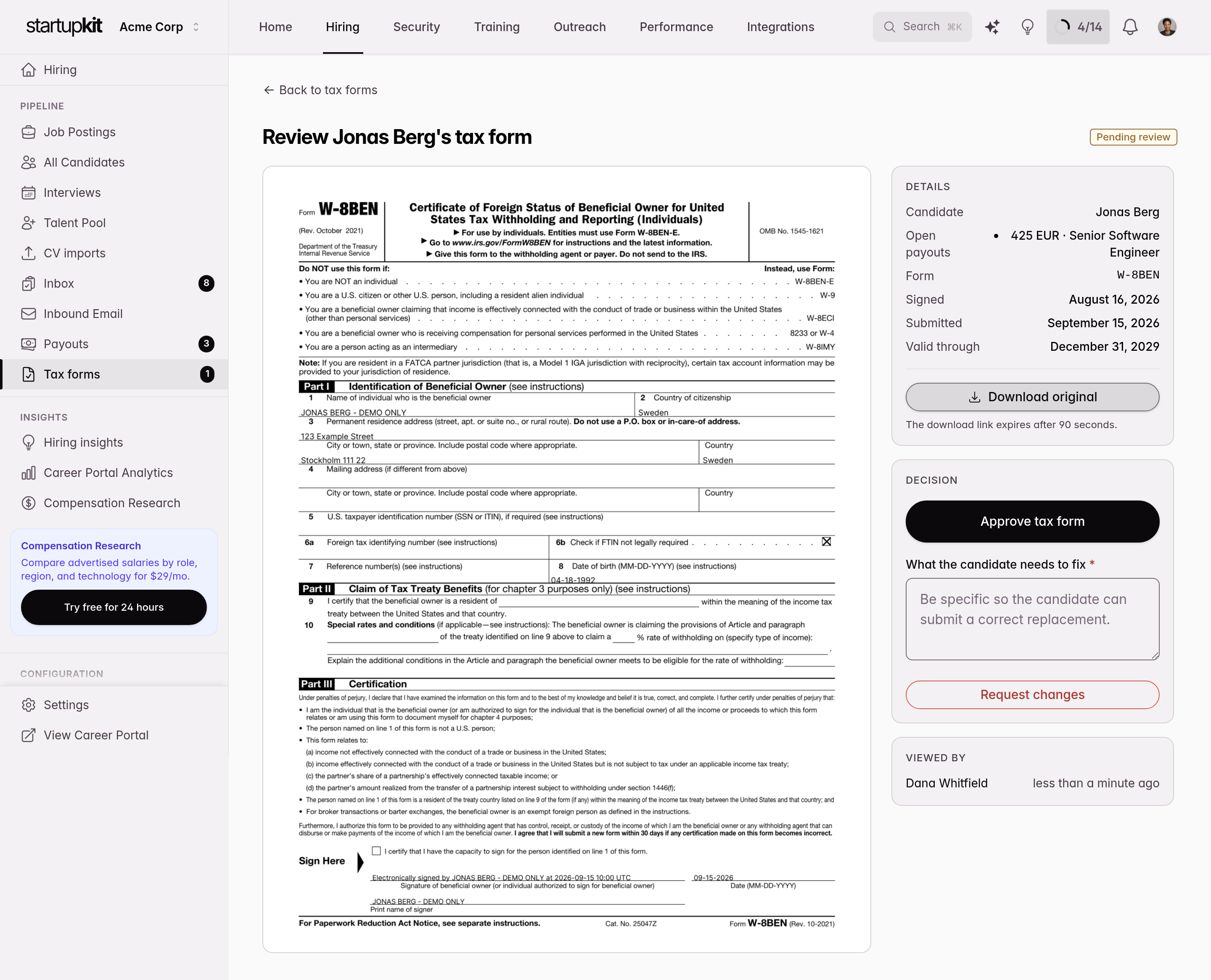
If finance tax-form review is enabled, the verified Finance Payment Inbox also receives a separate review email. Opening the email does not reveal the form: its first page is safe for automated email scanners, and the reviewer must choose to continue before Kit shows the protected preview or original file. Because the public link does not sign the reviewer into Kit, its holder enters their name for the audit trail; that name is self-reported, not identity verification. A signed-in account admin does not enter a name because Kit records their account identity with the decision.
Finance can Approve the current form or Request changes with a reason. Approval unlocks eligible payouts and may cause Kit to send the separate payment request, but it does not move money. Requesting changes sends the reason to the candidate and lets them upload a replacement. Turning finance tax-form review off, changing the Finance Payment Inbox, or removing it revokes outstanding review links. A new or changed inbox must be verified before it can receive review requests.
Use the Finance team role when the person needs a Kit login and a durable queue. It gives them candidate payouts and tax-document review without candidate applications, job configuration, or other Hiring work. Use the verified Finance Payment Inbox when finance should act from expiring email links without a Kit account. You can use either path or both.
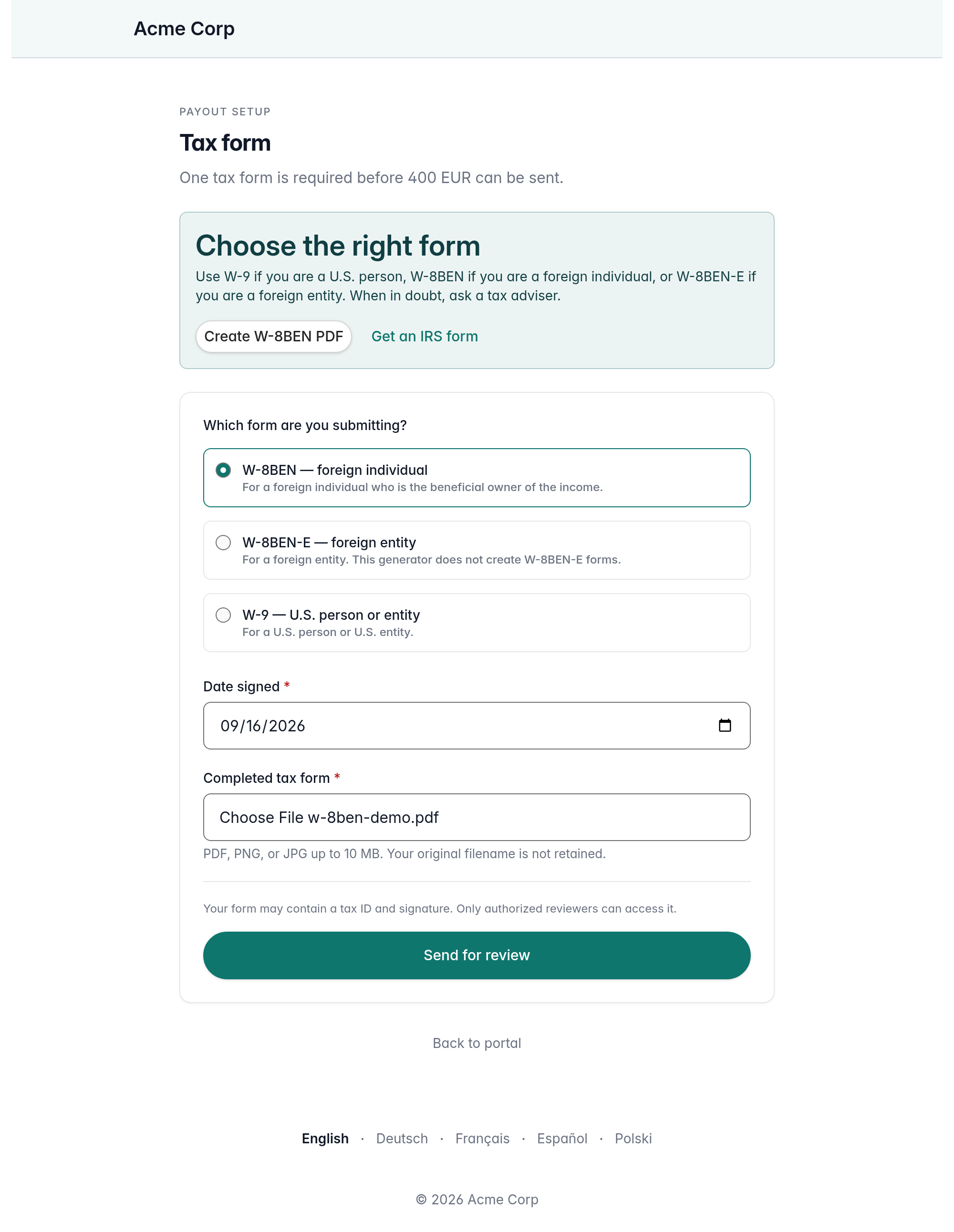
Approving a current form unlocks every eligible open payout for that candidate in the same account. Rejecting it requires a reason, sends that reason to the candidate, and lets them upload a replacement. Kit reuses an approved current form for later open payouts by the same candidate.
A candidate can also correct any approved W-8 or W-9. The approved form and an active finance handoff remain valid while the correction is reviewed. Approval replaces the previous form for open payouts; rejection leaves the approved form in use and tells the candidate what to fix.
Free W-8BEN Generator
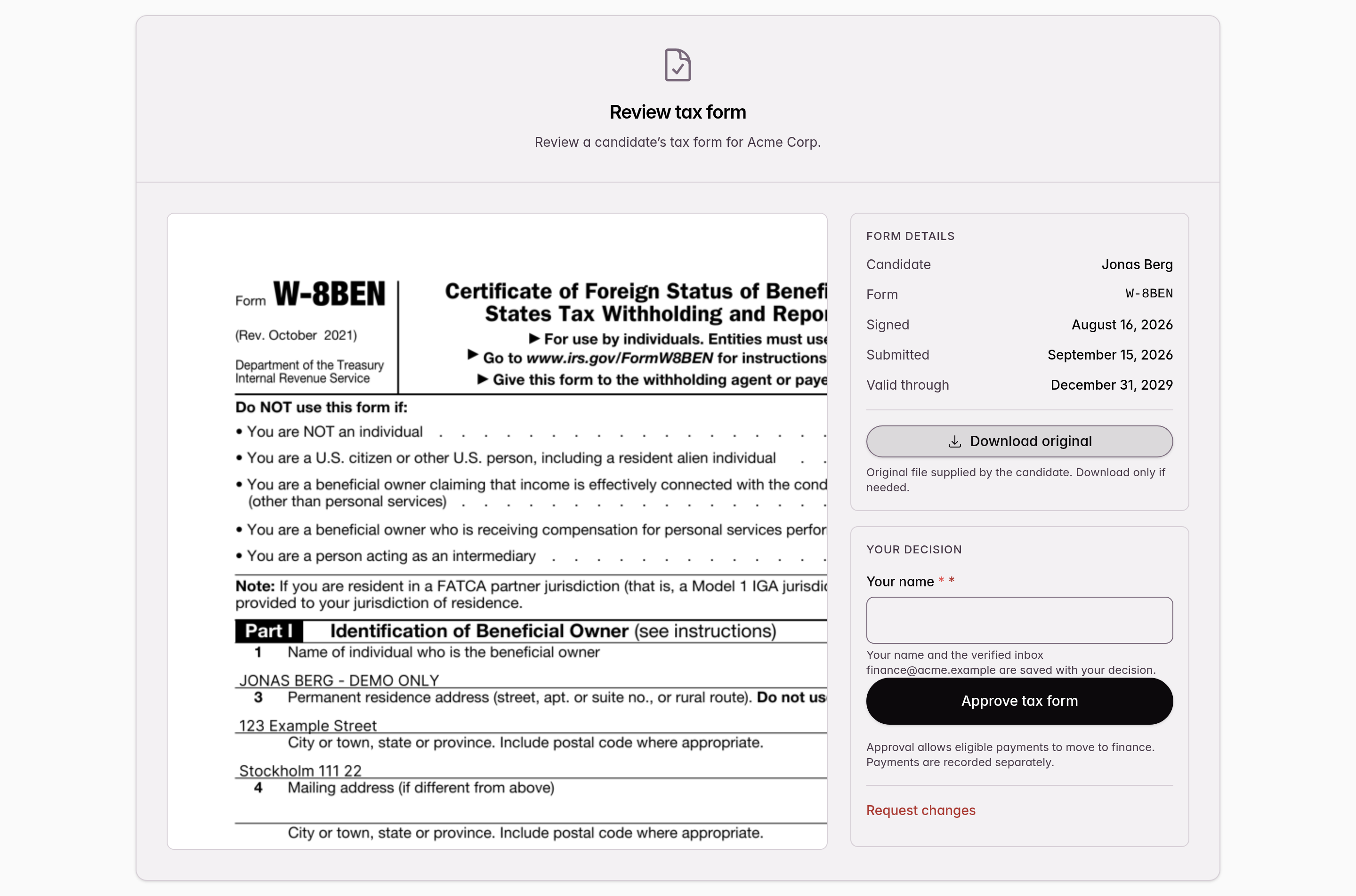
Anyone can create a W-8BEN PDF without a Kit account. The generator uses Form W-8BEN (Rev. October 2021). It does not create W-8BEN-E or W-9 forms.
The generator is for a non-U.S. individual, including a sole trader when the individual, not a separate company, is the beneficial owner. IRS instructions require line 6a only in certain account-holder cases. When it applies or the requester needs an FTIN, enter the tax identifier used in the country of tax residence. In Poland, that is usually PESEL for an individual without a registered business, or NIP for a JDG, a VAT-registered person, or anyone who otherwise uses NIP for tax purposes. Line 6b applies only when line 6a would otherwise be required and the person is not legally required to obtain an FTIN. In other cases, both lines may remain blank. A separate legal entity generally needs W-8BEN-E.
Entries are sent to Kit to generate the PDF, but Kit does not save the entries or generated file. The generator does not attach or submit the PDF anywhere. The candidate must download it and upload it through the payout link or send it to whoever requested it.
Expiry and Retention
Kit treats W-8BEN and W-8BEN-E as valid through December 31 of the third calendar year after signing. W-9 has no automatic expiry date in Kit. When an open payout needs the form, the candidate can submit a renewal during the final 30 days. If the approved form expires while a renewal or correction is still in review, payment pauses and an unfinished finance handoff is revoked until the replacement is approved.
Kit extends the form’s scheduled retention date through four years after its validity or the last completed payment, whichever is later. Candidate or account deletion can remove it earlier. Account data exports include the original tax-form attachment without redaction, so treat exported archives as sensitive.
Processing Payouts
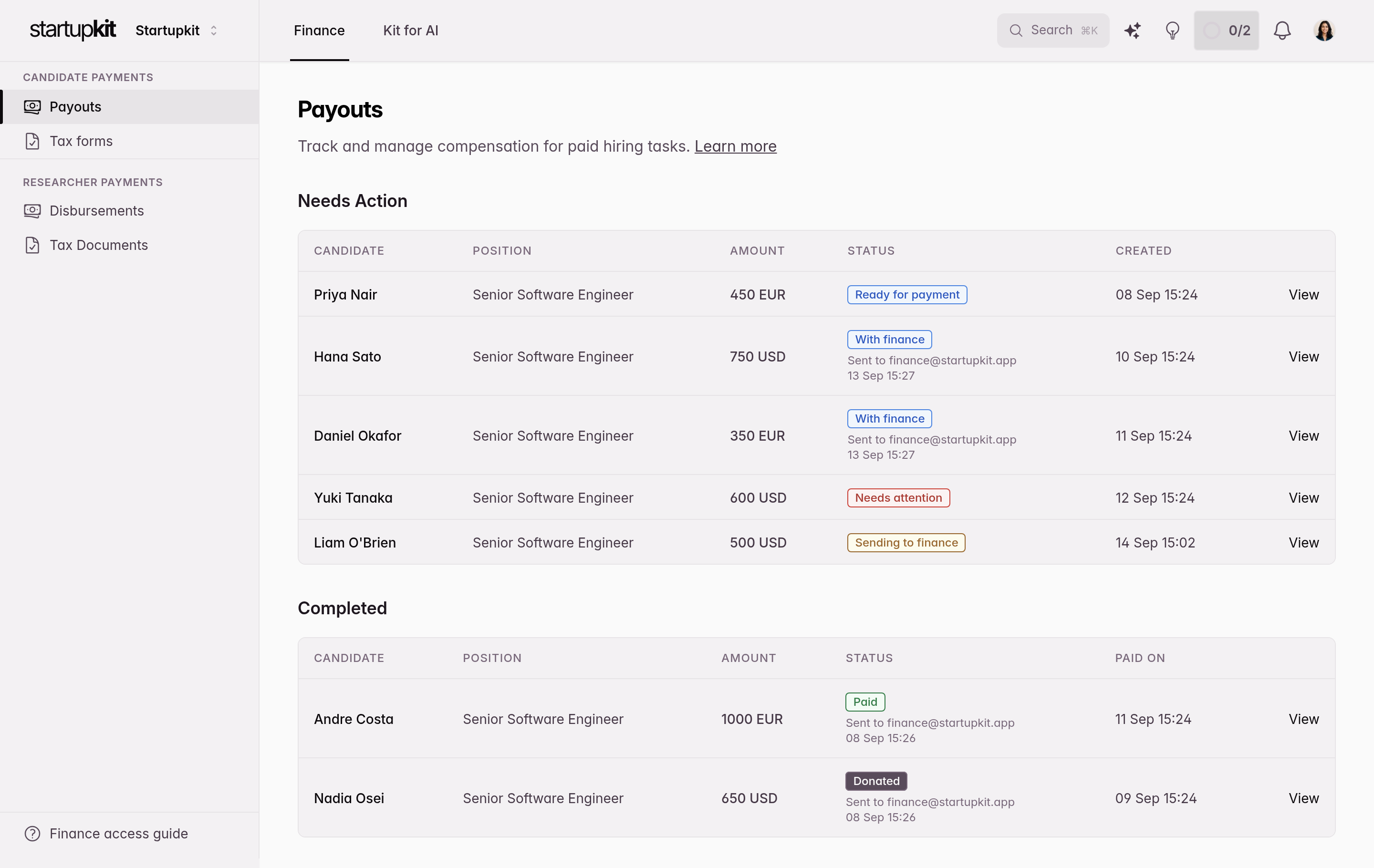
Navigate to Hiring > Payouts, or Finance > Candidate payments > Payouts for a Finance-role member, to see the payout dashboard. It’s split into two sections:
Actionable
Payouts that need attention are grouped by who owns the next step: waiting for candidate payment details, waiting for a tax form, waiting for tax-form review by an account admin or opted-in finance inbox, ready for manual payment, being sent to finance, with finance after a secure request was accepted for delivery, or needing attention after delivery failed or its outcome could not be confirmed.
For each payout, you can view the candidate’s submitted payment details and take action:
- Send to finance: Email the current verified Finance Payment Inbox from any ready payout, including a donation. Failed requests can be retried, and accepted requests can be replaced with a new secure link.
- Mark as Paid: For invoice and PayPal payouts. Enter a payment reference (e.g. wire transfer ID, PayPal transaction number) and optional notes. The candidate receives a confirmation email with the reference.
- Confirm Donation: Manual fallback for donation payouts. Enter a donation reference, optionally upload a PDF, PNG, or JPG receipt up to 10 MB, and add optional notes. The candidate receives a confirmation email mentioning the NGO.
Finance can record either a payment or donation from its secure link. Donation completion requires a reference; the receipt is optional because some organizations provide only a confirmation number or email. Kit records every queued request, accepted send, delivery outcome that needs confirmation, deliberate link access, and completion in the payout activity timeline, including the historical recipient and the externally supplied attribution. A typed name records what the link holder supplied; it is not identity verification.
Completed
Payouts that have been processed. Shows the paid/donated date, who processed it, the payment or donation reference, any uploaded receipt, and any notes.
Automated Reminders
A daily background job (runs at 9:00 AM) checks for payouts in the Ready for Payment state that are due for a reminder. The first reminder is sent on the next 9:00 AM run after payment details are complete and any required tax form is approved, provided finance has not taken ownership. After that, the job only sends a follow-up reminder if at least 3 days have passed since the last one, so your team gets reminded roughly every 3 days until the payout is processed. The reminder count is tracked per payout, so your team can see how many times they’ve been nudged about a particular payment.
Payment reminders only fire after the candidate has submitted their details and finance has not taken ownership. Payouts still waiting on the candidate or tax-form review, or payouts with an active finance request, do not trigger hiring-team payment reminders. Kit separately emails candidates when an approved W-8BEN or W-8BEN-E enters its final 30 days and an open payout needs a renewal. If finance delivery fails or Kit cannot confirm it, the payout returns to your team’s attention and payment reminders resume; check the finance inbox before retrying, or record the payment manually.
Payout Statuses
| Status | Meaning |
|---|---|
| Awaiting Candidate | Payout created, waiting for candidate to submit payment details |
| Awaiting Tax Form | Candidate submitted payment details and must upload a tax form |
| Tax Form Review | Candidate uploaded a tax form; an account admin or the opted-in Finance Payment Inbox must approve it or request changes |
| Ready for Payment | Candidate submitted complete details and any required tax form is approved; no verified finance inbox is handling it |
| Sending to Finance | Kit queued the secure payment request, but delivery has not been accepted yet |
| With Finance | A secure payment request was accepted for delivery by the configured finance inbox |
| Needs Attention | Delivery failed, or Kit could not confirm whether finance received the request; check the inbox before retrying or use the manual fallback |
| Paid | Team marked the payout as paid (invoice or PayPal) |
| Donated | Team confirmed the charitable donation |
Quick Checklist
- Fill in candidate-facing company payout details in Hiring Settings
- Optional: add and verify a separate Finance Payment Inbox, then opt in if finance should review tax forms
- Enable payout on the desired stage(s) and set amount and currency
- Publish the job and let candidates apply
- When candidates submit the deliverable on a paid stage, they’ll be prompted to submit payment details
- Review uploaded forms at Hiring > Tax forms, or let the opted-in finance inbox use its separate secure review link; approve a current form or request changes with a reason
- Monitor the Payouts dashboard and activity timelines
- Send or retry finance requests from the payout page; each replacement deactivates the previous link
- Let finance record payments and donations from secure links, or use the manual fallback
- For donations, verify the candidate-supplied organization independently and record a reference