Team Roles
Set up a new team member in one click. Pick a predefined role like Recruiter, Finance, or Security Analyst, then fine-tune their access if needed.
Why It Matters
Setting someone up shouldn’t mean thinking through every product one by one. A role is a one-click answer to “what is this person here to do?”. Pick it, and Kit pre-fills their access to match. You can still fine-tune every product afterward: roles suggest, they don’t lock.
The Roles
| Role | Who it’s for |
|---|---|
| Admin | Full access to everything: every product, plus billing, team management, security settings, and integrations. |
| Billing Admin | Manages the Kit subscription and billing, without access to the product modules. |
| Finance | Processes candidate and researcher payouts and reviews W-8/W-9 tax documents. Starts with no access to product work, candidate records, or vulnerability reports. |
| Security Analyst | Runs the Security module and manages security and API settings, plus member-level access to Training and Performance. Can view SSO configuration; only account Admins can change it. |
| Security Engineer | Security Member access only: investigates reports and coordinates fixes. Starts with no access to other products and grants no account management permissions; restricted reports need an individual grant. |
| Recruiter | Full access to Hiring, plus member-level access to Outreach, Training, and Performance. |
| Growth | Full access to Outreach, plus member-level access to Training and Performance. |
| Trainer | Full access to Training, plus member-level access to Performance. |
| People Lead | Full access to Performance, plus member-level access to Hiring and Training. |
| Member | The default. Member-level access to every product; narrow it per product where someone shouldn’t be. |
Security Engineer can read full technical details and internal notes, reply to researchers, link fixes, share reports, and propose or vote on bounties. Security admins and report leads can triage; only Security admins can restrict reports or approve bounties. Grant access to restricted reports individually.
Notes:
- Managing the account stays with Admins, except where an Admin hands out a piece of it. Billing, team membership, and account settings are Admin territory. A Billing Admin manages the Kit subscription, Finance handles payout and tax-document work, a Security Analyst manages security settings (including requiring passkeys for the whole account), and a member given the invite members capability can invite teammates.
- Finance is a cross-product work queue, not product access. It reaches candidate payouts, researcher disbursements, and their tax documents through a focused Finance workspace. It does not grant Hiring or Security content, bounty approval, payout configuration, team management, or subscription billing.
- Every role can connect an AI assistant. Kit for AI is open to every member, whatever their role. The connection reaches only the modules that member already has, at the level they already hold; see AI Agent and MCP Tools.
- Existing members aren’t affected. Everyone keeps the role that matches what they had: account admins are Admins, everyone else is a Member.
Assigning a Role
Go to Settings → Team, open a member, pick a role from the radio cards, and save; the role and its module levels are saved together. You can also assign roles from the Modules matrix, using the role picker on each member’s row.
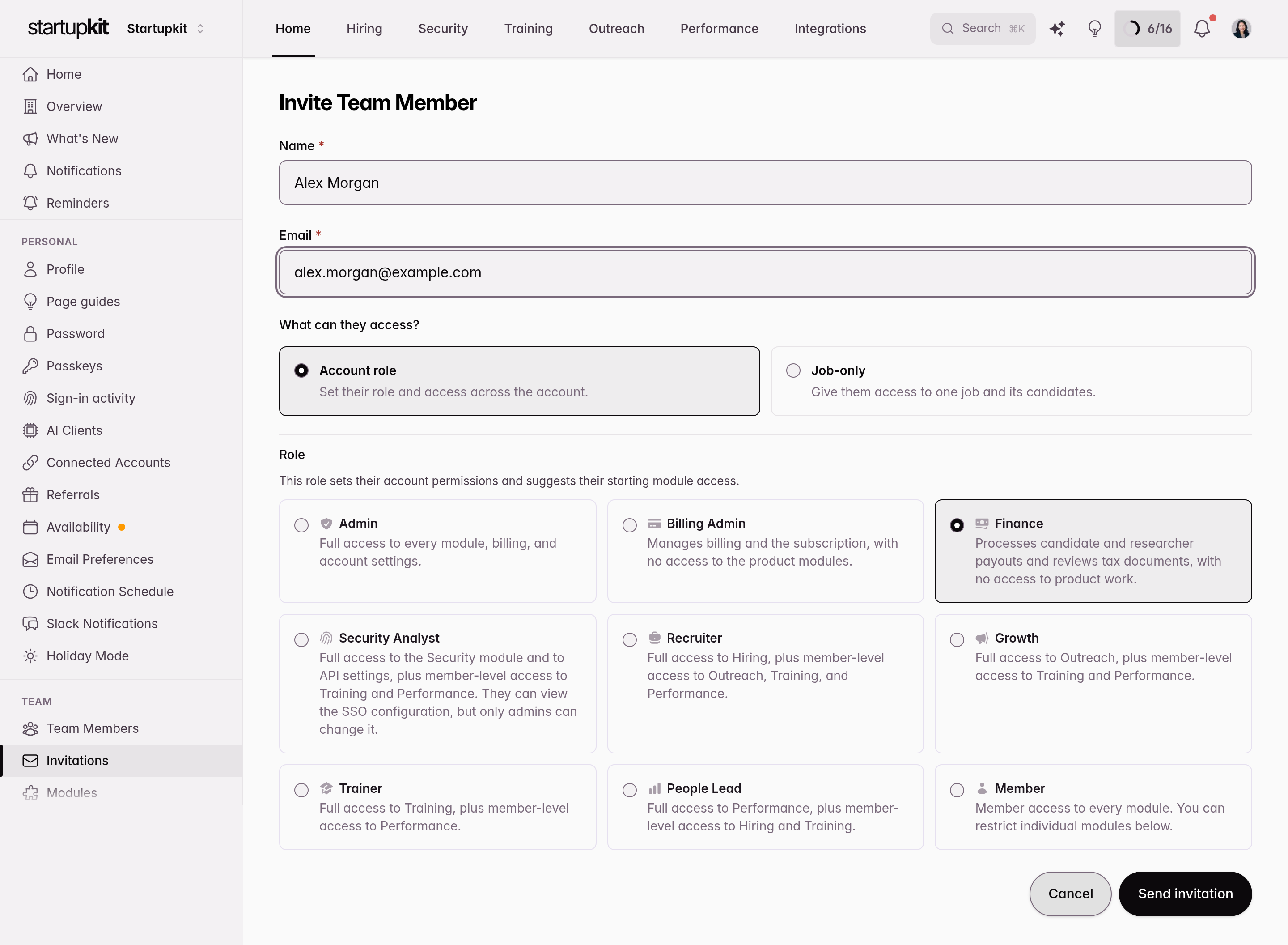
When you assign a role, Kit pre-fills the member’s access levels for Hiring, Security, Outreach, Training, and Performance to sensible defaults for that role: a Recruiter gets Hiring admin, a Trainer gets Training admin, and Billing Admin and Finance start with none of the products.
The invite members capability sits outside this. It’s granted per person on their access page, and picking or changing a role never adds or removes it; see Inviting Your Team.
Roles Suggest, They Don’t Lock
The pre-filled levels are a starting point. After assigning a role, open any cell in the Modules matrix and change it; the override sticks. If a recruiter also needs to manage Training, assign the Recruiter role and then raise their Training level from Member to Admin. Changing the role later re-suggests levels for the new role; anything you want to keep different, set again.
Tip
Start from a role, then fine-tune. Picking the closest role and adjusting one or two products is faster and less error-prone than building someone’s access from scratch, and it keeps similar people set up consistently.
Note
A role changes what someone can reach, not what they’re assigned to. Per-item assignments (like restricted job postings or report ownership) still work as described in Team Access Control. To restrict a single report or campaign to a chosen few, or grant one teammate a role on it, see Item-Level Access.
Quick Checklist
- When inviting someone new, pick the role that matches their job before anything else
- Fine-tune individual product levels only where the role’s defaults don’t fit
- Reserve Admin for people who manage the account
- Use Finance for payouts and tax documents; use Billing Admin for the Kit subscription
- After changing someone’s role, glance at their access page to confirm the levels look right